Troubleshooting LDAP Sync Service
A problem with the LDAP Sync Service is often indicated by the date the sync was last completed. If the sync does not take place on a regular basis (40 minutes or so), you may need to review sync log to understand what is causing the issue. Start by looking at the Last Sync Complete value on the LDAP Sync Service page.
The LDAP Sync Service creates a local event log where it records events as it performs the synchronization.
To find the logs, in the Windows Event Viewer, choose Application and Services Logs > KACECloud.
To export the contents of the log, right-click KACECloud, choose Save all events as, and specify a local file name for the exported log.
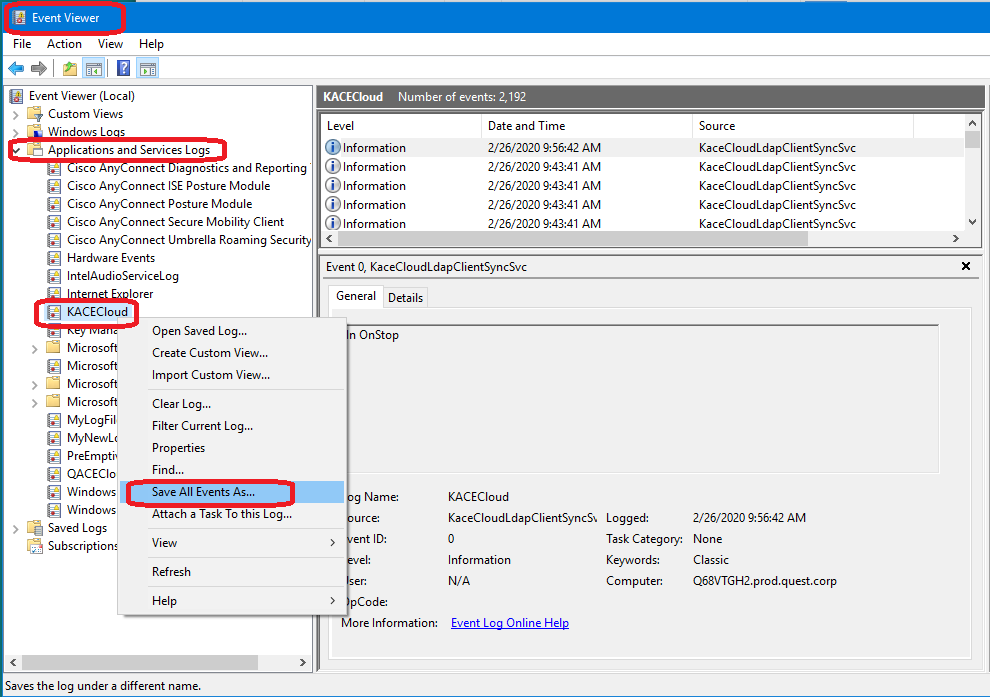
When you review the events in the log file, you can also create an unencrypted dump of the synchronization data that the service is attempting to synchronize with KACE Cloud.
To do that, locate the following Windows registry key:
Computer\HKEY_LOCAL_MACHINE\SYSTEM\CurrentControlSet\Services\KaceCloudLdapClientSvc\Parameters
Set the key to the following value: DWORD `ResultWriteLocalDump = 1`
This causes the system to write the LDAP query result to a json file located in the temp folder of the KCMDMLdapSync user. This directory can be found in most cases under "C:\Users\KCMDMLdapSync\AppData\Local\Temp", depending on the local system service account user name in use. The file name is the targeted domain name appended with a time-stamp.
When you set the key, restart the service in order for this setting to take effect.
When you no longer need this file, it is best to turn this setting off so that this confidential data is no longer being written to the local hard drive. When the setting is removed, or set to zero ‘0’, the service should be restarted and any previous dump files should be deleted.
In some cases, your configuration may stop working after an update, cannot find a sub-domain, or stop syncing accounts from your local Microsoft Active Directory. To address any of these issues:
- Check your internet connection.
- Verify your credentials.
- Go through the wizard and verify the 'Kace Cloud Ldap Client Service' is started.
- Ensure that port 443 is enabled on your firewall. This port is required to communicate with KACE Cloud. For more details, visit https://support.quest.com/kace-cloud/kb/4372993/which-urls-are-required-for-the-kace-cloud-to-function.
If a specific Active Directory user is not syncing to KACE Cloud but other users in the same Organizational Unit (OU) are syncing correctly, perform the following checks:
-
Verify user attributes mapping is correct
- In the KACE Cloud LDAP Sync Service Client, verify that user attribute mappings are correctly configured.
- In the Active Directory, ensure that the required user attributes are populated and not left blank in the account.
-
Trigger a full sync of all the Active Directory users
If the user still does not sync, you may need to trigger a full scan of all the Active Directory users.- On the machine where LDAP Sync is installed, navigate to 'C:\Users\KCMDMSvc\AppData\Local\Temp'.
- Locate and delete the file named `{Config.HostName}-{Config.Id}-FullScan`.

NOTE: The folder path includes the user account, which is `KCMDMSvc` by default.
- Open Services applet and restart the KACE Cloud LDAP Client Service.
This triggers a full rescan of all Active Directory users and may resolve the syncing issue.
Generating a Debug Log for Troubleshooting
If the previous steps do not resolve the issue, use the debug log to capture more detailed information. This method allows you to gather comprehensive troubleshooting data, which can help identify the root cause of configuration or connection issues within the LDAP Sync Service.
Follow these steps:
- Open an Administrator Command Prompt. The KACE Cloud | LDAP Sync Service wizard requires administrator privileges.
-
Change to the directory where the KACE Cloud | LDAP Sync Service is installed. This is typically:
"C:\Program Files (x86)\Quest\KACE Cloud LDAP Sync Service”
- Launch "Kace.Cloud.Ldap.Client.UI.exe" with the following parameters: /debuglog=%temp%\ldaplog.log
The complete command is: “Kace.Cloud.Ldap.Client.UI.exe /debuglog=%temp%\ldaplog.log” The `/debuglog=%temp%\ldaplog.log` parameter instructs the application to write a log file named ldaplog.log to the %temp% folder. This log file captures detailed information about any errors or exceptions the client encounters and records values discovered when querying the specified domains for LDAP information as they navigate through the wizard to configure the service. - Once you finish configuring the LDAP Sync Client and the wizard exits, check the specified location in the command line parameter above for the log file.